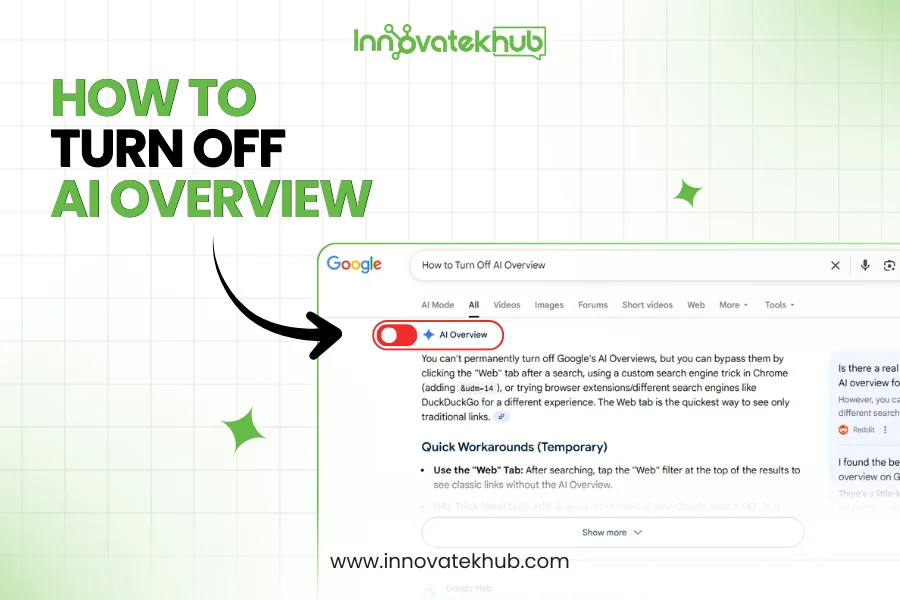
Artificial intelligence (AI) has become an integral part of our digital lives, embedded in nearly every device and application we use. From virtual assistants and smart devices to personalized recommendations and predictive analytics, AI is shaping the way we interact with technology. However, there are times when users prefer to disable or limit the influence of AI in their daily lives. Whether for privacy, performance, or personal preference, turning off AI features can help you take control over your devices and reduce unnecessary automation.
In this guide, we will explore how to turn off AI-powered features across various platforms and devices. If you’re concerned about privacy, security, or just want to minimize the automation in your life, this article, published on Innovatek Hub, will walk you through the process step-by-step.
Why Turn Off AI Features?
Before diving into the details of how to turn off AI features, let’s explore the reasons why you might want to disable these technologies. Here are some of the main concerns that drive users to disable or limit AI:
- Privacy Concerns: Many AI systems rely on data collection to provide personalized services, such as voice recognition, location tracking, or personalized recommendations. Turning off AI can help you regain control over your personal data.
- Battery Saving: AI-driven apps, such as background processes, notifications, and location tracking, often consume significant battery power. Disabling unnecessary AI features can extend the battery life of your devices.
- Performance Issues: AI-driven features can sometimes slow down devices, especially if the device isn’t equipped to handle intensive processing. Turning off AI features can help improve the overall performance and speed of your system.
- User Control: Some users prefer to manually control their devices instead of relying on automation. Disabling AI-driven decisions allows them to regain full control over their operations.
Now that we understand why turning off AI might be beneficial, let’s move on to the specific steps for disabling AI-powered features on various devices and platforms.
How to Turn Off AI on Various Devices
1. Turning Off AI on Smartphones
Smartphones are perhaps the most AI-driven devices we use daily. They leverage AI for everything from voice assistants to photo enhancements and even battery optimization. Here’s how you can turn off AI-powered features on your smartphone:
On Android Devices
- Google Assistant: Google Assistant is one of the most widely used AI-powered features on Android phones. To turn off Google Assistant:
- Open the Google Assistant app.
- Tap your profile icon in the top-right corner.
- Go to Assistant settings.
- Scroll down and select General.
- Toggle off the switch for Google Assistant.
- Battery Optimization: Android devices use AI for background processes, which can consume battery life. To turn off this feature:
- Go to Settings and tap Battery.
- Select Battery Optimization.
- Choose specific apps to optimize or turn off optimization entirely for apps that you don’t use often.
On iPhones (iOS)
- Siri: Apple’s voice assistant, Siri, uses AI to process commands and provide personalized recommendations. To turn off Siri:
- Open Settings.
- Tap Siri & Search.
- Toggle off Listen for “Hey Siri”, Press Side Button for Siri, and Allow Siri When Locked.
- Photo AI: iOS uses AI to enhance photos and categorize them automatically. To turn this off:
- Open Settings.
- Scroll to Photos.
- Toggle off iCloud Photos and Optimize iPhone Storage to stop automatic syncing and AI-enhanced photo management.
2. Disabling AI on Smart Speakers (Amazon Echo and Google Home)
Smart speakers are powered by AI to provide hands-free assistance, control smart devices, and respond to voice commands. Here’s how you can turn off AI features on popular smart speakers:
Amazon Echo (Alexa)
To turn off Alexa’s voice recognition:
- Open the Alexa app.
- Tap on Devices at the bottom of the screen.
- Select your Echo device and tap Settings.
- Go to Alexa Privacy and turn off Voice History and other data collection settings.
Google Home
To turn off Google Assistant on Google Home:
- Open the Google Home app.
- Tap on your device.
- Select Settings > Assistant > General.
- Toggle off Google Assistant.
Social media platforms, such as Facebook, Instagram, and YouTube, use AI to personalize content and advertisements. Here’s how to turn off these AI-driven features:
Facebook
- Personalized Ads: To stop Facebook from using AI to personalize your ads:
- Go to Settings > Ads.
- Tap Ad Settings and disable Personalized Ads.
- Content Recommendations: To limit content recommendations:
- Go to Settings & Privacy.
- Tap Activity Log and manage what Facebook suggests to you based on AI-driven algorithms.
Instagram
- Suggested Posts: To turn off Instagram’s AI-powered recommendations:
- Open Settings in the Instagram app.
- Go to Account > Recommendations.
- Disable the Suggested Posts feature.
4. Disabling AI in Smart Devices and Home Automation
In the world of smart homes, AI is used for automation, energy management, and predictive behavior. If you’d like to disable AI in your smart devices, here’s how:
Smart Thermostats (Nest, Ecobee)
AI in smart thermostats learns your preferences to automatically adjust temperatures. To turn off AI:
- Open the Nest app.
- Go to Settings.
- Toggle off the Learning option to stop automatic temperature adjustments.
Smart Lights and Appliances
Many smart devices like Philips Hue and smart plugs use AI to create schedules and automate tasks. To disable these features:
- Open the respective smart home app (e.g., Hue app, SmartThings).
- Go to Automation or Smart Features.
- Disable any automation rules or preset schedules powered by AI.
Challenges of Turning Off AI Features
While turning off AI can be beneficial, it’s not without its challenges:
- Limited Functionality: Disabling AI features often results in reduced functionality. For example, turning off voice assistants will prevent you from using voice commands for controlling devices.
- Inconvenience: AI helps to automate repetitive tasks, saving time and effort. Turning it off can make everyday tasks more manual and time-consuming.
- Compatibility Issues: Some devices or systems may not allow you to turn off certain AI features, as they are deeply integrated into the operating system or device.
Benefits of Turning Off AI Features
Despite these challenges, there are several advantages to turning off AI features:
- Enhanced Privacy: Disabling AI-driven data collection helps protect your privacy by limiting the amount of personal information stored and processed.
- Improved Performance: Some AI functions, especially background processes, can slow down your device. Turning off these features can improve speed and responsiveness.
- Battery Life: Reducing the number of AI-driven apps or processes running in the background can extend your device’s battery life.
Table: AI Features You Can Turn Off Across Devices
| Device/Platform |
AI Features You Can Turn Off |
How to Disable |
| Android |
Google Assistant, Smart Battery, Auto Sync |
Settings > Google Assistant > Toggle Off |
| iPhone (iOS) |
Siri, Smart Photos, App Suggestions |
Settings > Siri & Search > Toggle Off |
| Amazon Echo (Alexa) |
Alexa Voice Recognition, Data Collection |
Alexa App > Devices > Settings > Privacy |
| Google Home |
Google Assistant, Voice Recognition |
Google Home App > Settings > Assistant |
| Facebook |
Personalized Ads, Content Recommendations |
Settings > Ads > Ad Settings |
| Instagram |
Suggested Posts, Activity Log Recommendations |
Settings > Account > Recommendations |
| Nest Thermostat |
Learning Mode (AI-driven temperature adjustment) |
Nest App > Settings > Toggle Off Learning |
| Smart Lights |
Automation Rules, Smart Scheduling |
App > Automation > Toggle Off |
Conclusion
Turning off AI-powered features is a straightforward way to regain control over your devices, improve privacy, and optimize performance. Although it may come with some sacrifices in functionality and convenience, the ability to disable AI features empowers users to tailor their digital experiences to their preferences.
At Innovatek Hub, we understand the importance of staying informed about the technologies you use. By following the steps outlined in this guide, you can effectively manage and deactivate AI features across various devices and platforms, ensuring a more secure and personalized technology experience. Whether you’re concerned about privacy, battery life, or simply want more control, knowing how to turn off AI can help you take charge of your digital environment.







No Comments